Frequently Asked Questions
Find answers to frequent questions regarding your MIEC policy, coverage, and more.
If you have questions about navigating the new Member Portal, visit our Member Portal FAQ
If you can’t find the answers you need here, please reach out to us here.
Renewal Application:
How do I access & submit my renewal application?
A brief (2:32 min) video walkthrough of how to use Adobe Acrobat Sign is available on Adobe's support page.
How to access your renewal application.
Your Renewal application has been sent to the email address we have on file for you as a policyholder or provider. Please check your inbox. If you are having trouble finding it, search your inbox and spam/junk folders for the following.
- Sender Name: "Renewal Applications via Adobe Acrobat Sign"
- Sender Email: adobesign@adobesign.com
- Subject Line: Signature requested on "2025 Renewal Application"
The email body will state, "Renewal Applications requests your signature on 2025 Renewal Application." Followed by a message from MIEC's VP of Underwriting.
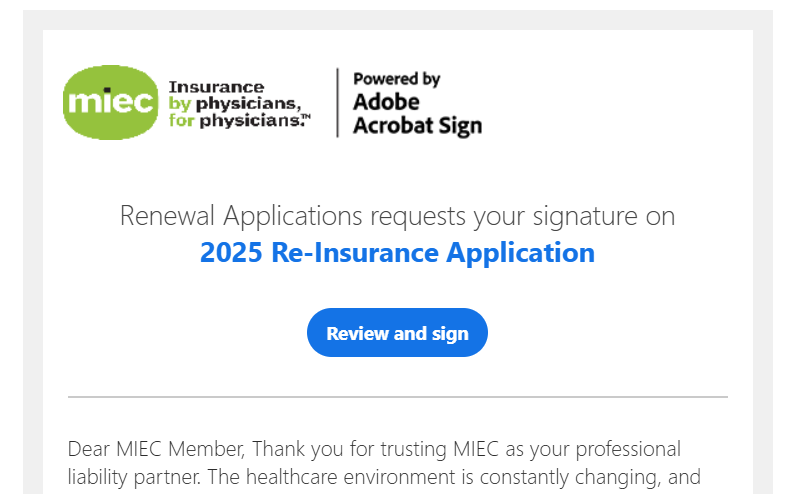
Preview of Renewal Application Email
Opening the Application
Click on the "Review and sign" button. This will open a new webpage containing your renewal application, as seen below.
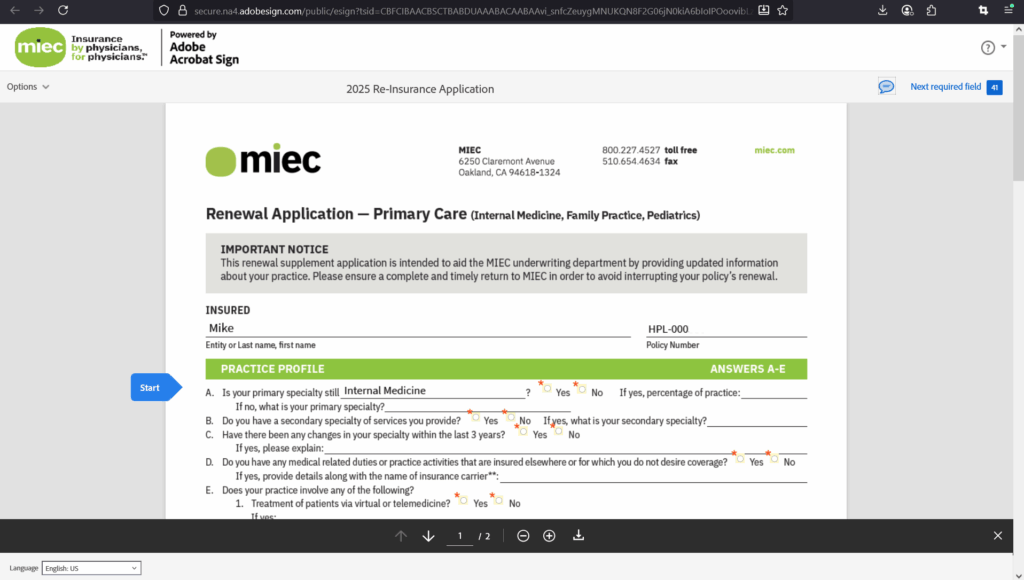
Filling out and Signing the Application:
The form will be prepopulated with some details, such as your name & policy number. Required fields are marked by a red asterisk (*). You can begin to fill out the remaining fields by clicking on the Start tab (seen above), which will take you to each required field, or you can fill out the form in the order of your choosing.
Once you reach the end of the application, you will be prompted to sign and submit it. To sign the document, click on the signature field. You will get a pop-up with 4 signature options:
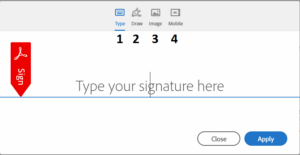
- Type - type your name and it will output it into a handwritten-style font.
- Draw - You will be able to use your mouse or touch screen to draw your signature
- Image - You can upload an existing image of your signature
- Mobile - This will send a link to your phone for you to draw your signature using its touch screen.
Choose your preferred option and click Apply.
Note: If you have a signature in Adobe & have signed documents before, the application may apply that signature once you click. To change it, click on the signature field a second time, and you will be presented with the signature options.
Once that is done, an animated red Adobe Sign tag will prompt you to finish the document by clicking the " Click to Sign" button.
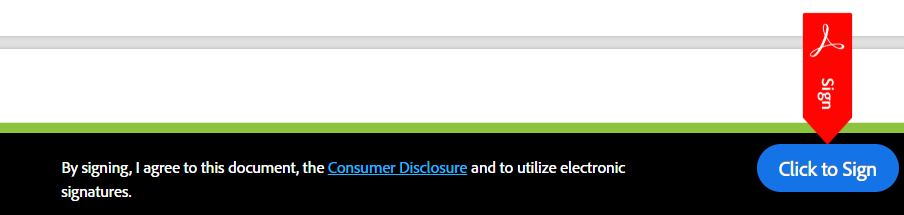
The "Click to Sign" button will submit your renewal application to MIEC & send a copy of the completed application to your email. You will know you've successfully submitted your application when you see the following screen.
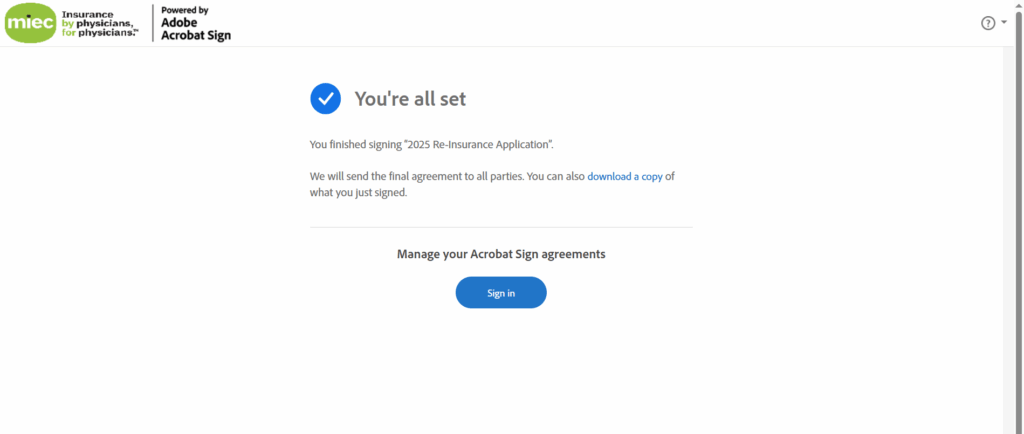
You're all set!
You can now close the window, download another copy of the signed form, or, if you have an Acrobat Sign account sign in to view your signed agreements.
Do I need Adobe installed?
No. You do not need to have any Adobe or Acrobat program installed.
Clicking on the link in the email from Adobe Acrobat Sign will open a webpage where you can fill out your application as you would any online form.
Do I need an Adobe Account?
No.
You do not need an Adobe account, nor should you be asked to log in to an Adobe account to access or complete your renewal application via Adobe Acrobat Sign. (Source: Adobe Support)
How do I get a copy of my renewal application?
Once you submit your application, you will be sent a copy of the completed application.
You can also download a copy of your renewal application directly from Adobe Acrobat Sign as you fill it out. Simply click on the download link 📥 icon at the bottom of the form.
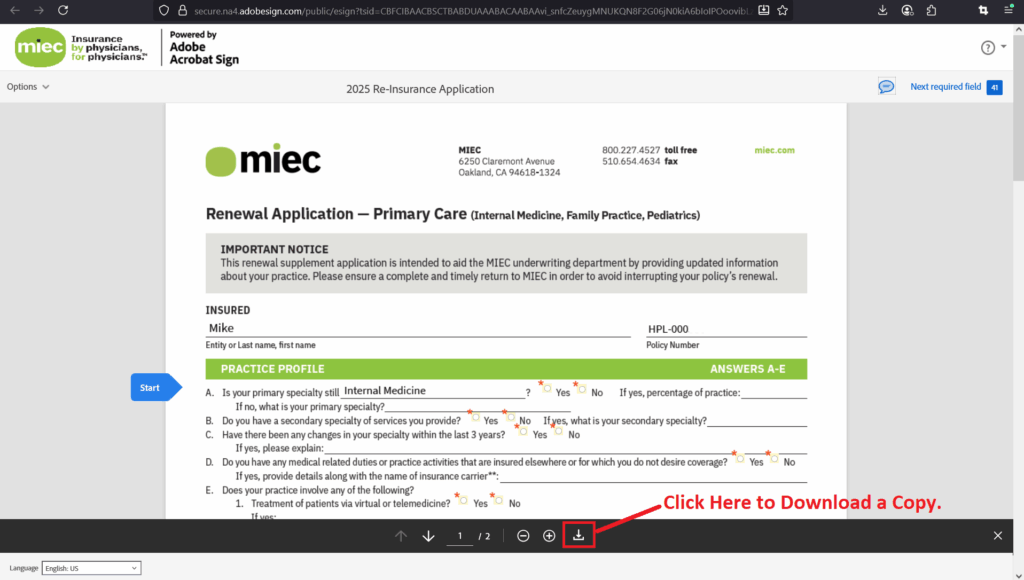
You will also have an opportunity to download a copy once you've submitted your renewal application, as seen in the submission confirmation screenshot below.
Coverage & Policy:
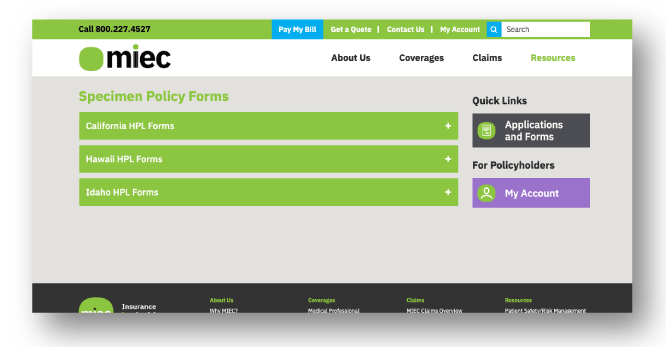
MIEC issues a modified claims-made policy. Premiums over the first five years of coverage are increased, or “step up”, to reflect the accumulation of exposures to loss during this period of time. Policies issued without "Prior Acts" coverage, sometimes referred to as “nose coverage”, are charged the first-year rate. Step-rate changes differ based on specialty and territory, but generally occur over a five-year period. After the step-rate period has ended, the policy or coverage is considered “mature”. Extended reporting endorsements (ERE), or “tails”, are generally offered once a policy or coverage is terminated. MIEC offers an ERE at no additional premium for death, disability and retirement. Physicians who have been insured at least five (5) consecutive years by MIEC at the time of retirement are eligible for a retirement tail at no additional charge. Cyber Liability (formerly known as DataGuard) provides coverage for information and network security risk and protection from the growing risk associated with unauthorized access to information technology and patients' personal health information. For coverage details and an explanation of MIEC's Master Policy, please visit our cyber liability page. Reasons for suspension are illness, leave of absence, sabbatical, military and maternity leave. All other requests are subject to manager approval. Requirements: There is no age limit on the MIEC policy; however, when treating minors, different rules apply. For further info, please reach out to our PSRM department. As an MIEC policyholder, you can access digital specimen policy forms. Once you're logged into your MIEC account, you can find the forms via: There, you will find specimen policy forms organized by state. What is a claims made step?
How can I earn a free tail?
What is Cyber Liability Coverage?
Can I suspend my policy? What are the requirements?
Is there an age limit on patients I can treat?
How can I access Specimen Policy Forms?
Payments:
Yes. Currently, MIEC accepts credit card payments for annual & quarterly payments. You can also pay by check or through automatic ACH debit. If you set up automatic ACH debit, payments will be made over 10 equal installments of 10%. Yes, you can set up automatic ACH debit payments through the payment portal. Click here to follow our step-by-step guide. Yes! To make your payment by mail, send your payment directly to the address below or use the preprinted envelope that came with your invoice. MIEC Our Member Services team will be happy to assist you in making a payment. They can be reached at 800.227.4527 or via our contact form. Can I pay my installments with a credit card?
Can I set up automatic recurring payments?
Can I make a payment by mail?
PO BOX 889241
Los Angeles, CA 90088-9241 Can I make a payment without logging in?
Claims:
The best way to report a claim is to fill out our Report a Claim Form. Alternatively, claims can be reported by: We know physicians are continually confronted with situations where medicine and the law intersect. Our Claims and Patient Safety Risk Management teams have been advising and protecting our members since 1975. Let us help you navigate these situations and provide guidance when you face uncertainty. Please contact us immediately if you: 1. Need advice about a particular situation, such as: 2. Have concerns about an unexpected patient outcome, such as: 3. Have received any legal papers, including: 4. Have received a formal or informal claim directly from a patient. 5. Have received an inquiry or notice from the medical licensing board. You can report a claim here. If you’re unable to report your claim online, please call 800.227.4527. How do I report a claim?
MIEC
ATTN: CLAIMS DEPARTMENT
6250 CLAREMONT AVENUE
OAKLAND, CA 94618 When should I report a claim?